The short answer
We could not find an official X Article cover size. Published specs disagree, so treat any exact number with caution. A practical choice is a 5:2 image at 1500 by 600 pixels or larger, with everything important kept away from the edges.
Then check it in X's own preview before you publish. That is the real test.
What is actually known
X's developer documentation covers cover images as a field on the draft, and it does not state a size, a ratio or how the cover is cropped. We found no X page that does, though we could not open the Help Center directly when writing this, so it is worth a look there.
Third-party pages fill the gap with confident numbers that do not agree:
| Published size | Ratio | Where it comes from |
|---|---|---|
| 1200 × 480 | 5:2 | Tool and template listings |
| 1250 × 500 or 1500 × 600 | 5:2 | SEO pages that cite no source |
| 1920 × 368 | About 5.2:1 | One guide's own testing |
| 1600 × 900 | 16:9 | Another guide |
| 1200 × 675 | 16:9 | A general post and link size, not an Article spec |
None of these is official. The takeaway is that the cover is wide, that exact cropping is not promised anywhere, and that it may differ between the feed card, the Article page and the apps.
A safe working size
Pick a ratio and design for some cropping. We use 5:2, because most of the published numbers cluster there and it suits a wide headline image. At 1500 × 600 or larger, the image has room to stay sharp on a large screen, and starting bigger is better than having to enlarge later.
If you already know a different ratio works for your account, trust what you can see in the preview over any table, including ours.
Designing for the crop
- Keep the subject central. Words, faces and logos near the edge are the first things to go.
- Use fewer words. Readers see your headline too, so the image does not need to repeat it. Three or four large words beat a sentence.
- Check it small. Shrink the image to the width of a phone. If the words are hard to read at that size, make them bigger or remove them.
- Check both themes. A cover with a pale edge can bleed into a light background, and a dark one into a dark background. A little contrast at the border helps.
- Make it specific. A cover made for this Article says more than generic stock imagery, and it helps your regular readers recognize your work.
File formats and weight
X's developer documentation lists JPG, PNG, GIF and WEBP for images, up to 5 MB. Those are the API's upload limits, and we could not confirm that the composer uses identical ones, so staying within them is the cautious choice.
Use JPG or WEBP for photographs, and PNG for flat graphics with text, where JPG can leave fuzzy edges around letters.
Alt text
Alt text describes an image for people using screen readers, and for anyone whose image fails to load. X documents alt text for uploaded media, up to 1,000 characters, but it does not document whether Articles show it to readers. Write it anyway. It takes a moment, and it costs you nothing if X later uses it. Describe what the image shows, plainly, and leave out "image of".
Common problems
The title on my cover is cut off
The crop in X is not the crop you designed. Move the words toward the center, reduce them, or take them out of the image and let the headline do that job.
The cover looks blurry
The original was probably too small and got enlarged. Go back to a larger source file rather than sharpening a small one.
It looked fine in my design tool
Design tools show the whole canvas, and the feed does not. Always judge from X's preview or a test view at phone width.
Setting a cover in Pilcrow
Pilcrow's crop dialog locks to 5:2 so that your frame stays consistent. Drag and zoom inside the frame, and it saves the crop as its own image, keeping the original so you can change your mind.
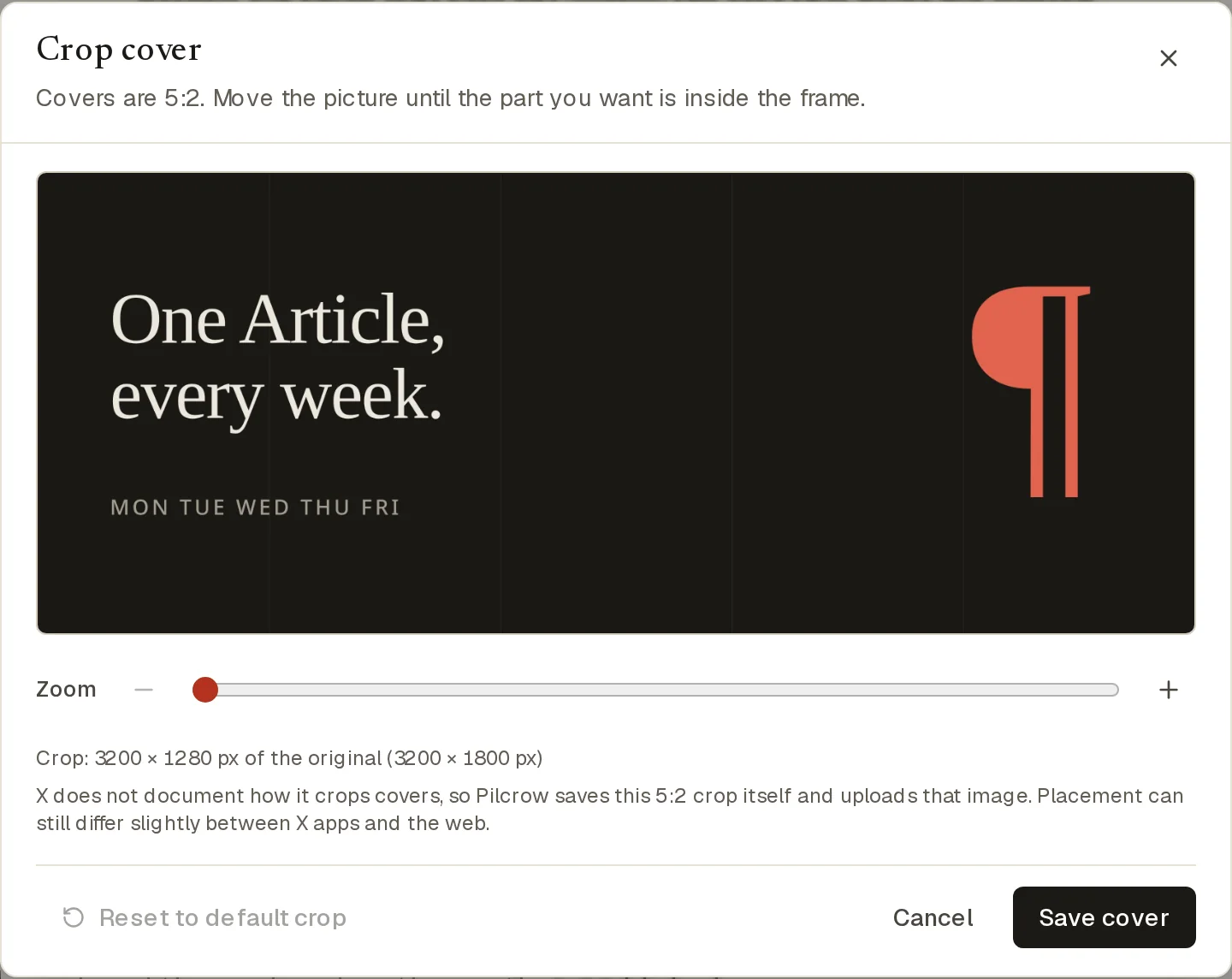
It warns you when a picture is too small to stay sharp, and it saves crops of up to 3000 by 1200 pixels. You can use PNG, JPEG, GIF or WebP. Large JPEG, PNG and WebP files are reduced in your browser to fit the 4 MB limit, and GIFs over 4 MB are refused.
The crop is ours, not X's
As the dialog itself says, X does not document how it crops covers, so placement can still differ slightly between X's apps and the web. On a public account you download the saved cover and add it in X's composer, so you see the result before you publish.
With the cover done, the next step is scheduling the Article.
Sources
- X developer documentation: media best practices Formats and file size for API uploads.
- X API: Articles introduction
- X Help Center: Articles Our tools could not open this page on 1 November 2026. If it now lists a cover size, trust it over this guide.
Keep reading
- How to Schedule an X ArticleX offers no schedule button for Articles. Here are the three routes that work, and what each one gives up.
- How to Add a Caption to an X ArticleThe caption is typed in X's own publish step. Here is how it works, why automatic tools cannot add one, and what not to do instead.