The short answer
X's API has no way to schedule an Article, and we found no X documentation of one in its composer. So you have three real routes: publish by hand at the time you want, use a tool that calls X's API at that time, or use a tool that prepares everything and reminds you.
The API route is the only hands-free one, and it cannot include a caption. The other two can, because you press Publish yourself.
What X offers today
Scheduling tools for ordinary posts do not carry over to Articles. Third-party documentation reports that X's Article composer offers publishing now and nothing later, and we found no X page describing an Article schedule.
The API tells the same story. X documents two Article operations: create a draft, and publish a draft. The publish call goes out the moment it is made, and it takes no date. Any product that schedules an Article has to hold it and act at the right time itself. Knowing that makes the options below much easier to compare.
The three routes
| Route | Who presses Publish | Caption in the same post | Best for |
|---|---|---|---|
| By hand in X | You | Yes | An occasional Article, written in X |
| An API scheduler | The tool | No, the API has no caption field | Hands-free publishing, when no caption is needed |
| Assisted, as in Pilcrow | You | Yes | Regular publishing, with a caption or a team |
Typefully and OpenTweet are two products that document automatic Article scheduling. If hands-free matters more to you than a caption, look at them. On any of these routes, X limits publishing Articles to certain paid plans, so check that yours is one.
What Pilcrow does not do
Pilcrow does not publish Articles automatically for public accounts. It prepares the Article, holds your schedule and reminds you at the minute, and you publish in X's composer. That is assisted publishing, and it is not full automation.
Scheduling with Pilcrow
- Finish the draft. The checklist blocks scheduling only for real problems, such as a missing headline or an unfinished prompt.
- Choose the time. Open Schedule, pick a local date and time, and check the time zone.
- Decide on an email reminder. The reminder in Pilcrow always appears. The email is optional, off by default, and needs a confirmed address.
- Write the caption, if you want one. You will see it above the Article, as one post.
- Confirm. You approve the exact content, time and method. Later edits stay out unless you confirm again.
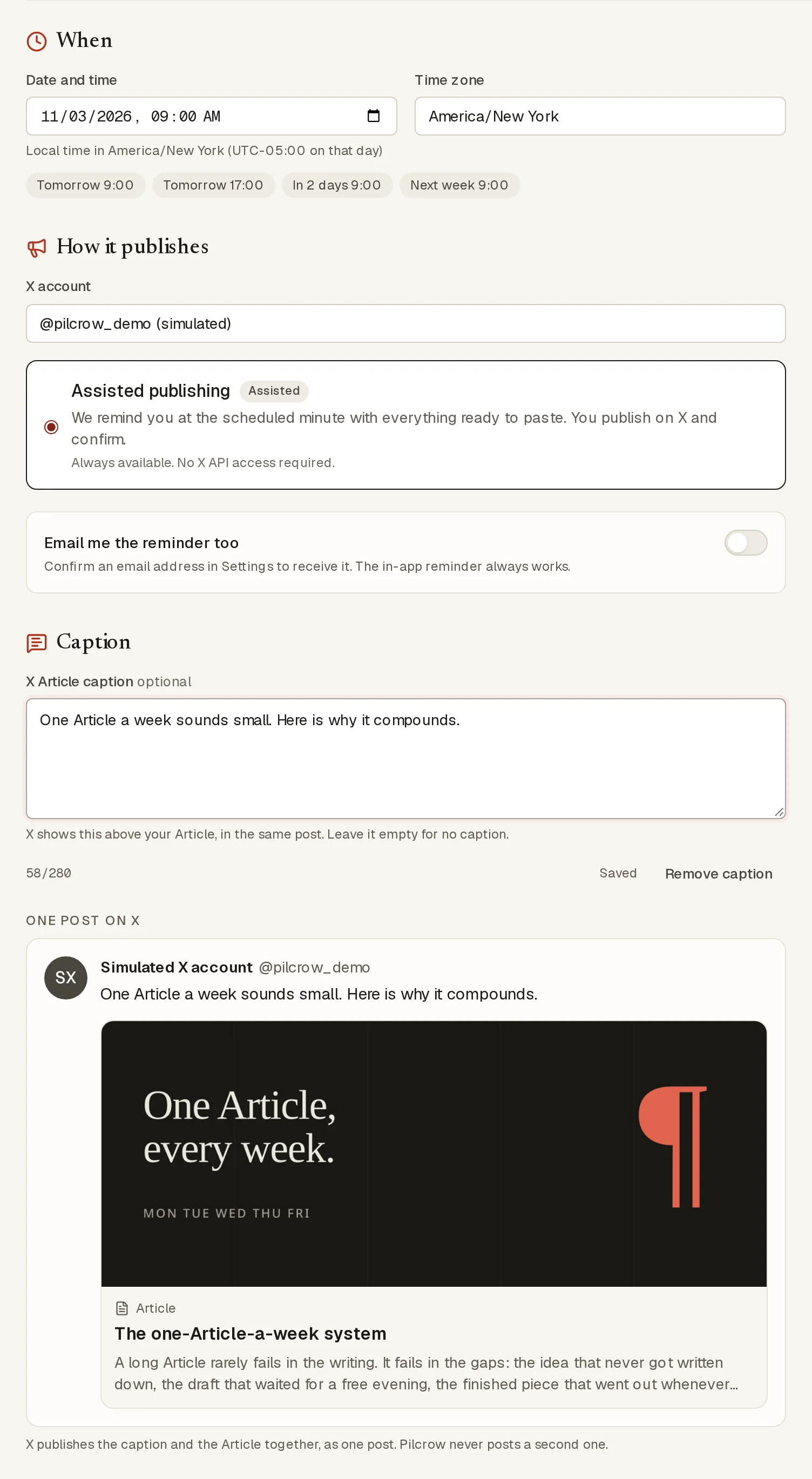
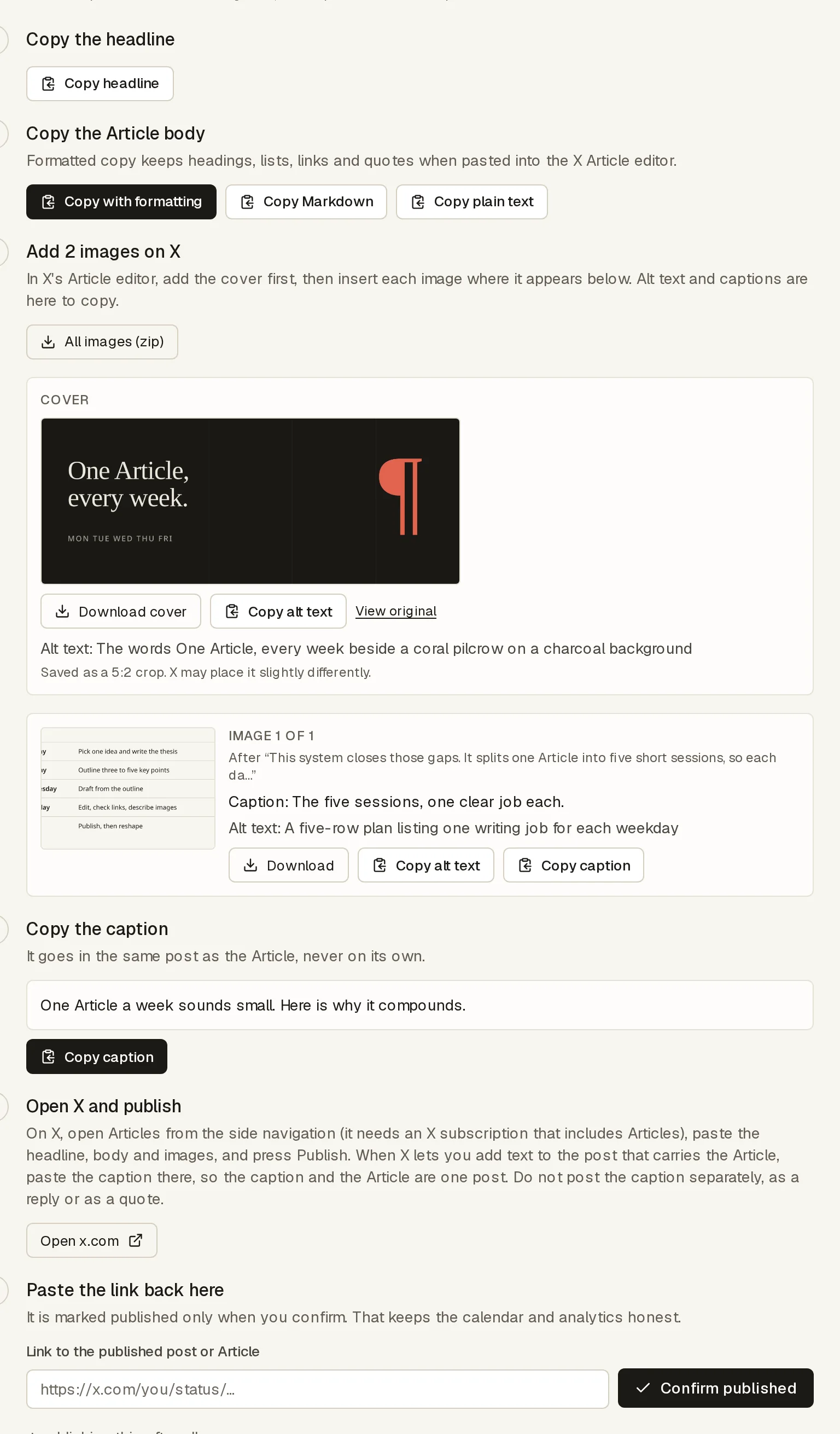
When your minute arrives, Pilcrow lays out the Article in order. Then:
- Copy the headline and the body into X's Article composer.
- Add the cover first, then each inline image where it belongs.
- Press Publish, and add your caption in the step that opens.
- Paste the link back into Pilcrow. It counts as published only then.
Publishing on time by hand
If you work in X alone, the method is simple: finish the Article as a draft in X, set a calendar alarm ten minutes before your time, and use those ten minutes to read the X preview once more. The small margin matters. It gives you time to fix a broken link or a cover that crops badly, without missing your slot.
Common problems
The reminder came and went
Pilcrow reminds you once. If you might be away from the screen, switch on the email reminder or set your own alarm as well. A reminder is not a guarantee that the Article goes out.
Formatting changed after pasting
Pasting moves text between two editors, and the result can differ. Use Copy with formatting, then scan the headings, lists and quotes in X's preview before you publish.
Images did not come across
Images need adding in X. Use the download buttons, and keep the handoff page open beside you to copy each image's alt text and caption.
The time was an hour off
This is nearly always a time zone or a clock change. Check the zone on the schedule itself, especially for a date just after daylight saving ends. If a time does not exist that night, Pilcrow says so and offers the next valid one.
Articles is missing from X
X limits Articles to certain paid plans. If the Articles entry has gone from your side navigation, check your subscription first, and see X's Help Center for the current plans.
You need to change it after publishing
X's Help Center describes an Edit Article option that unpublishes the Article while you revise it, and then you publish again. Read it through before your minute, not after.
Choosing a time
No single hour works for everyone, and any universal "best time" is a guess about someone else's readers. Look at when your own posts get replies, pick one slot you can keep, and hold it for a few weeks so that the comparison means something. A regular slot also solves the harder problem, which is finishing on time.
Before you commit to a date, get the cover right with our guide to X Article cover images, and read how to add a caption to an X Article if you want text above it.
Sources
- X API: Articles introduction
- X API specification (OpenAPI) Version 2.173, checked 31 October 2026.
- X Help Center: Articles Our tools could not open this page on 1 November 2026, so we relied on search excerpts. Check the current text.
- Typefully: how to schedule X Articles Third-party, 9 July 2026.
- OpenTweet: can you schedule X Articles? Third-party.
Keep reading
- How to Add a Caption to an X ArticleThe caption is typed in X's own publish step. Here is how it works, why automatic tools cannot add one, and what not to do instead.
- X Article Cover Image Size and Best PracticesNo official size, several conflicting ones, and a practical way to design a cover that holds up anyway.